
Hazards_
Hazards represents management of hazards within project machine assessment.
Overview
Following diagram describes features available in hazards.
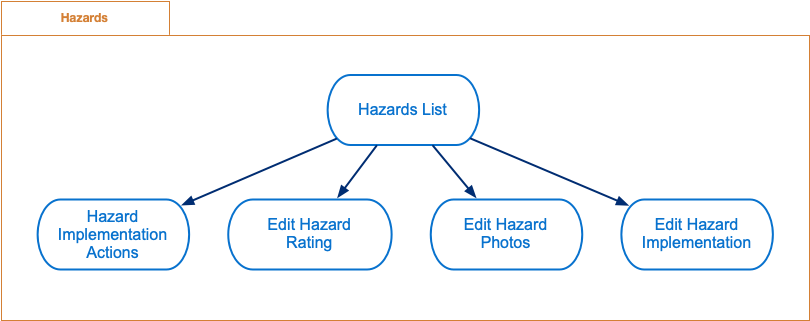
Hazards features
Hazards List - display list of all hazards.
Hazard Implementation Actions - actions allows to change hazard implementation state
Edit Hazard Rating - updates hazard rating
Edit Hazard Photos - manage hazard photos
Edit Hazard Implementation - updates existing hazard implementation
Hazards list
This is the main screen of measurements functionality. It displays list of measurements.
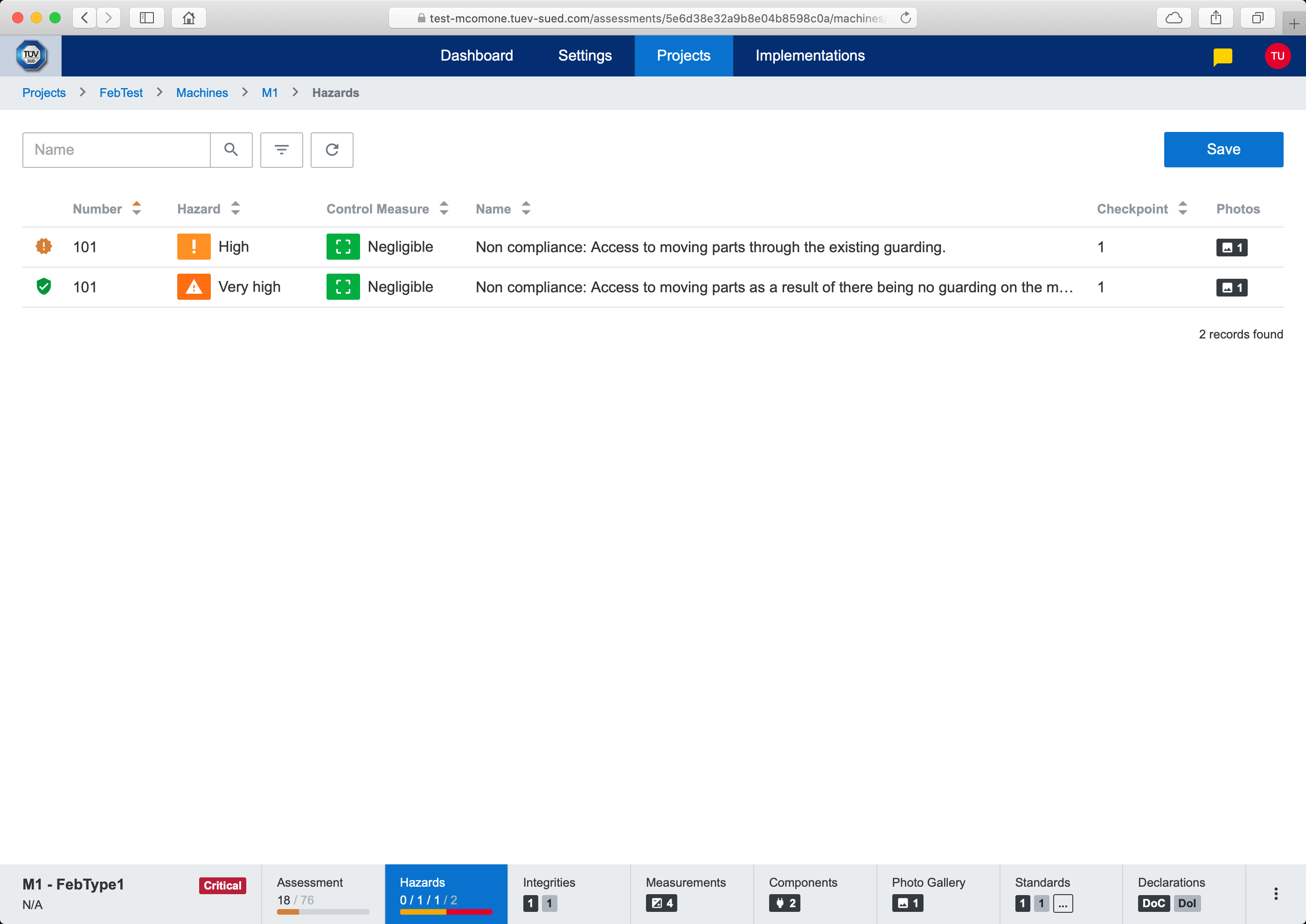
Hazards list
Following actions are available in measurements list screen:
Hazard Implementation Actions - activated using dropdown menu on row
Edit Hazard Rating - activated by clicking on row
Edit Hazard Photos - activated by clicking on row
Edit Hazard Implementation - activated by clicking on row
Hazard Implementation Actions
Hazard implementation action is used to change hazard implementation state. Following diagram describes possible hazard implementation states.
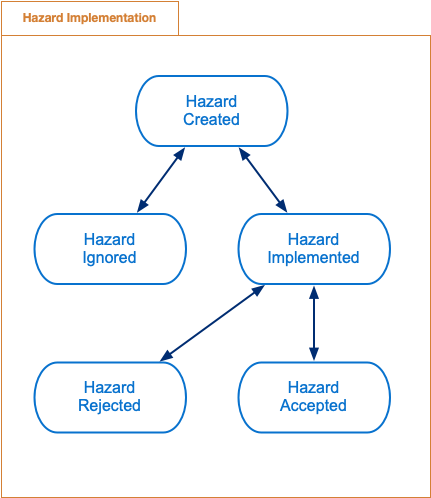
Hazard implementation states
In order to change hazard implementation state, hazard implementation action needs to be created. Hazard implementation action is created using dropdown menu that available on each hazard implementation row.
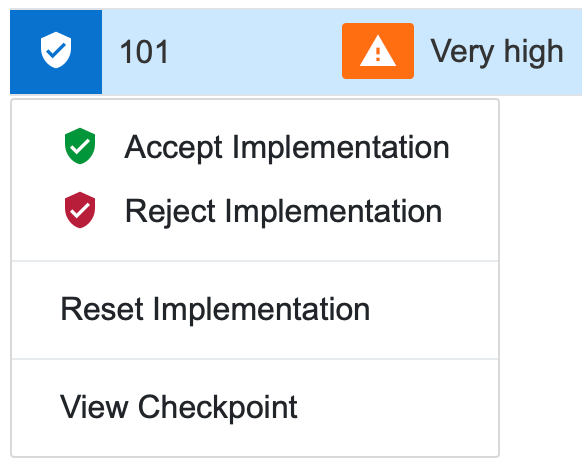
Hazard implementation actions dropdown menu
Values in this dropdown menu depends on current hazard implementation state and only relevant actions are available. Clicking on item in dropdown menu opens hazard implementation action modal dialog.
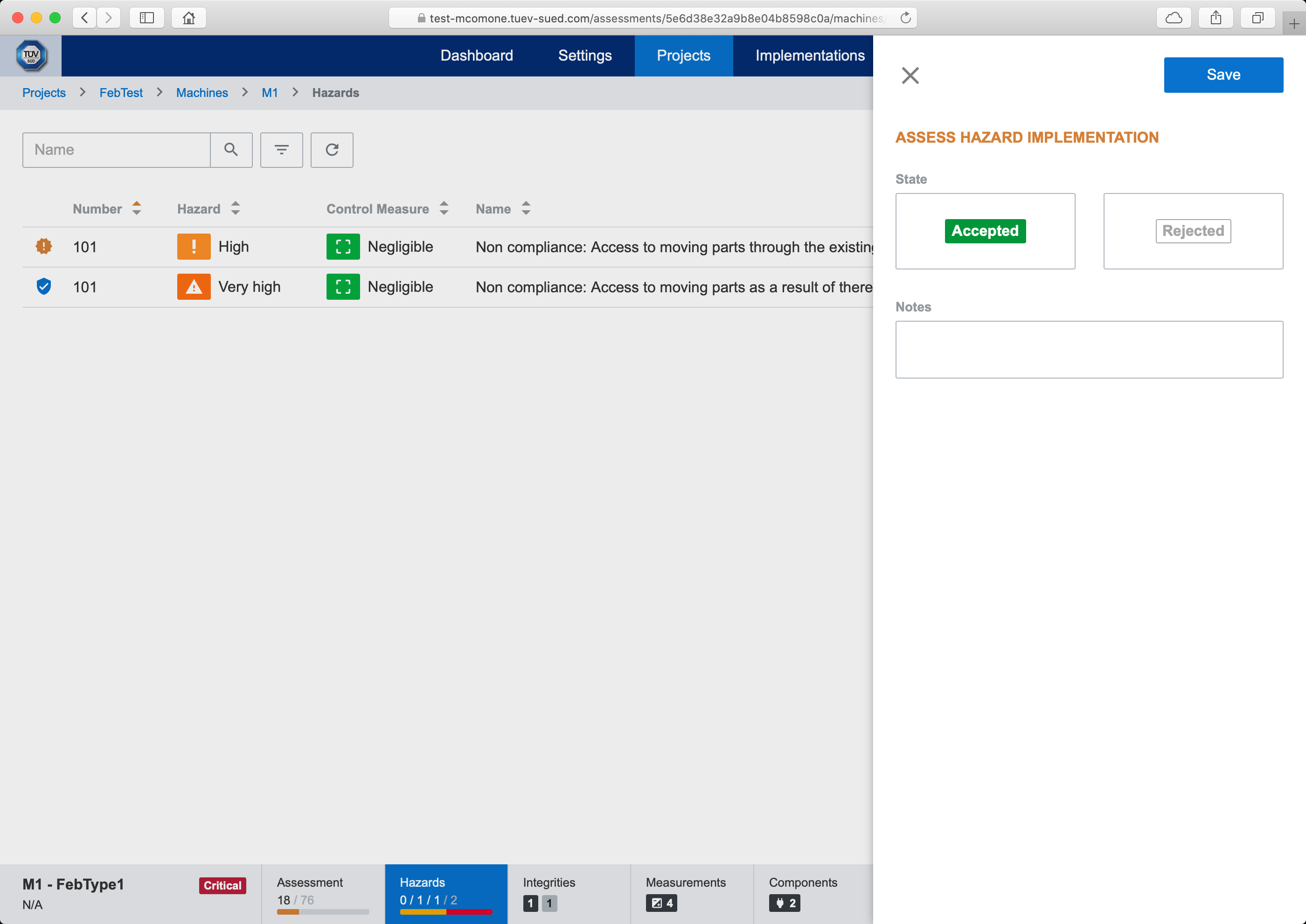
Hazard implementation action dialog
Saving hazard implementation action will create new action in hazard implementation actions list and will change hazard implementation to new state.

Note: Hazard implementation action documents (e.g. photos, documentation, etc.) can be added in Manage Action Documents.
Edit Hazard Rating
This modal screen is used to edit hazard rating in project machine assessment.
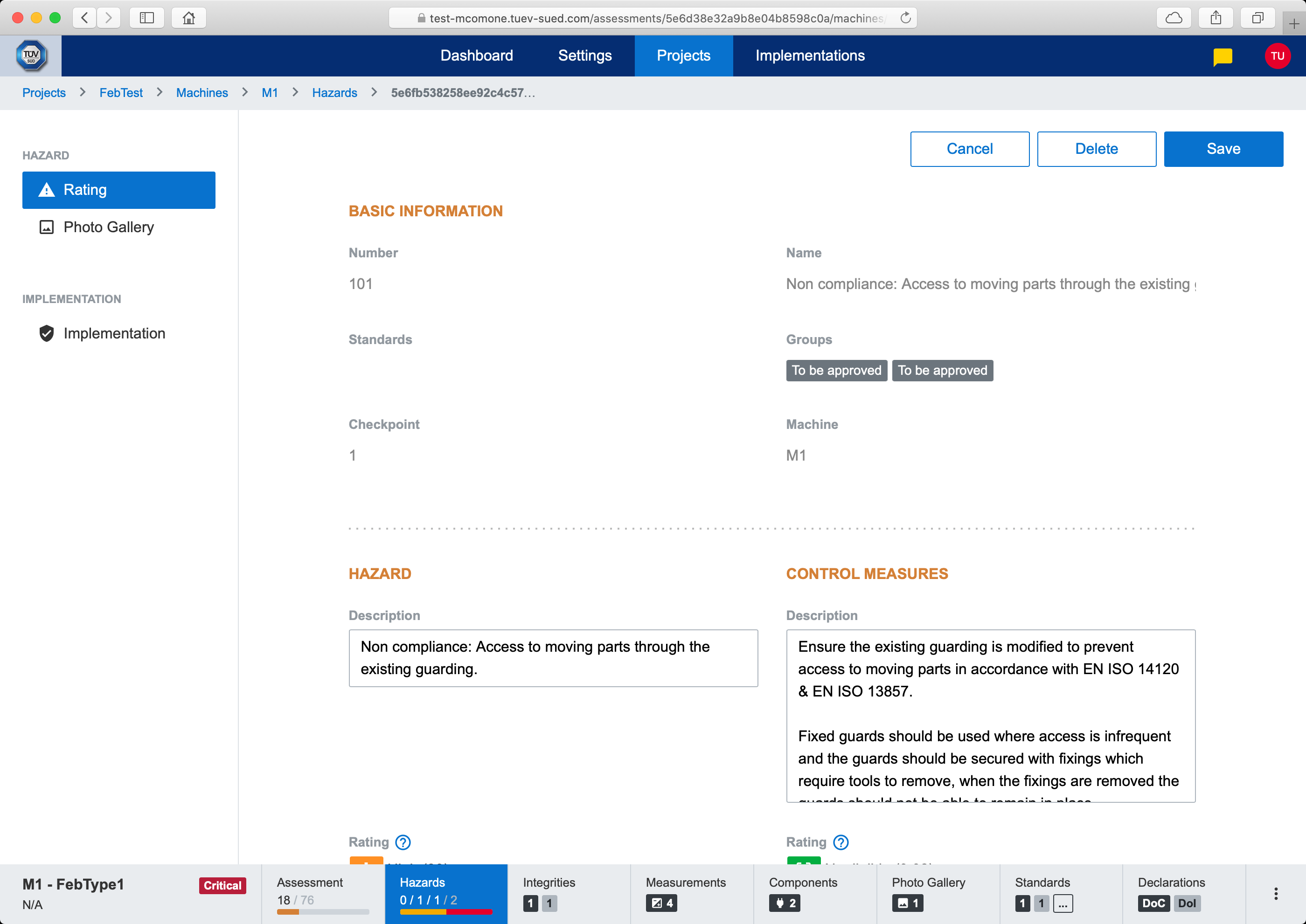
Edit Hazard Rating
Following actions are available:
Delete - will delete hazard from project machine assessment and deassociate it from corresponding checkpoint.
Edit Hazard Photos
This modal screen is used to edit hazard photos in project machine assessment.
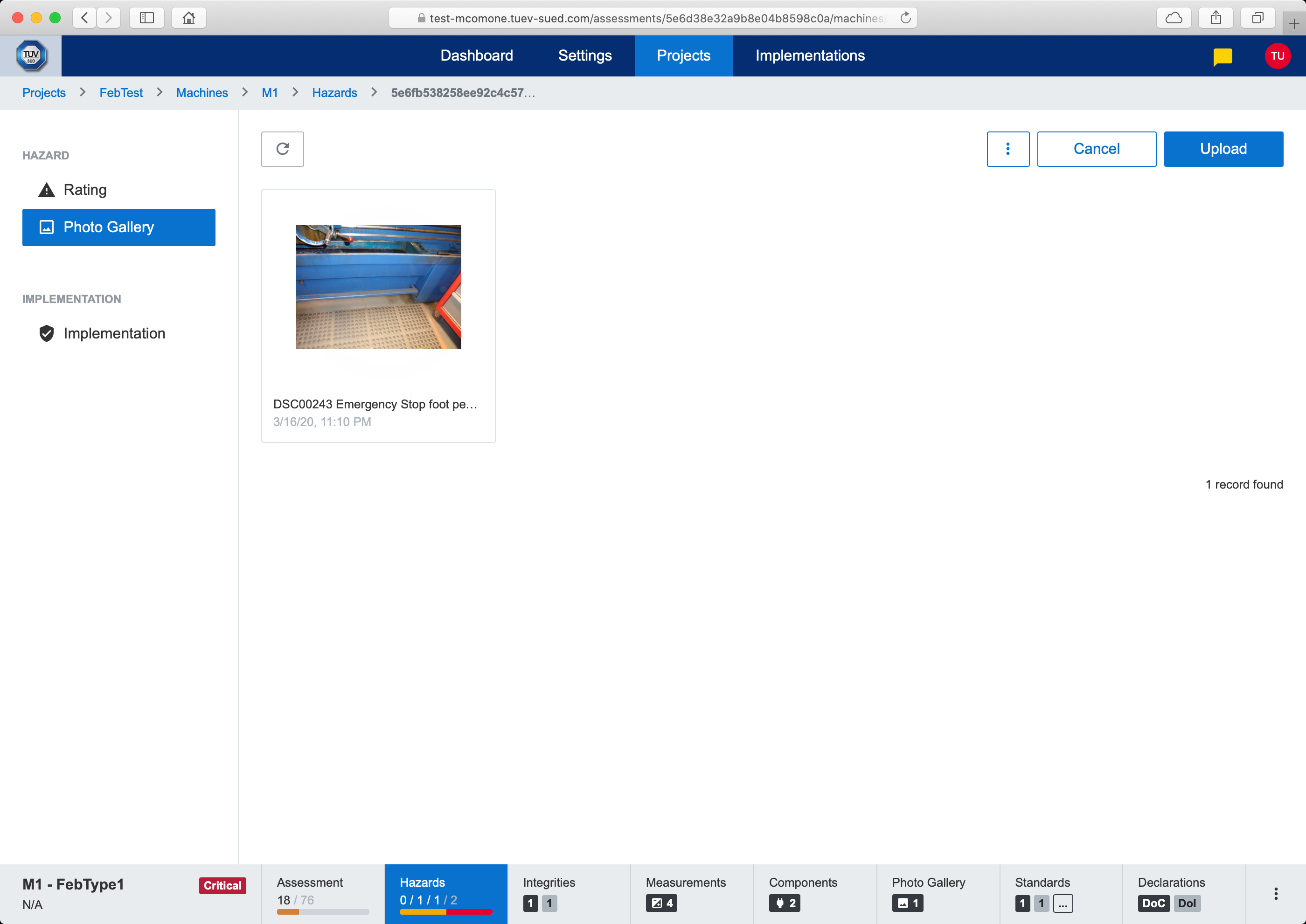
Edit Hazard Photos
Following actions are available:
Edit - activated by clicking on photo
Upload - activated by clicking on top right button or by drag & drop of files into this screen
Download - activated from dropdown menu on each photo
Delete - activated from dropdown menu on each photo
Delete Selected - activated from top right dropdown menu
Delete All - activated from top right dropdown menu
Edit Photo
This modal screen is used to edit hazard photo (i.e. photo editing and photo description editing). Basic photo editing capabilities are available:
Rotate photo
Crop photo
Add simple drawing (text label, geometric shapes, free hand drawing)
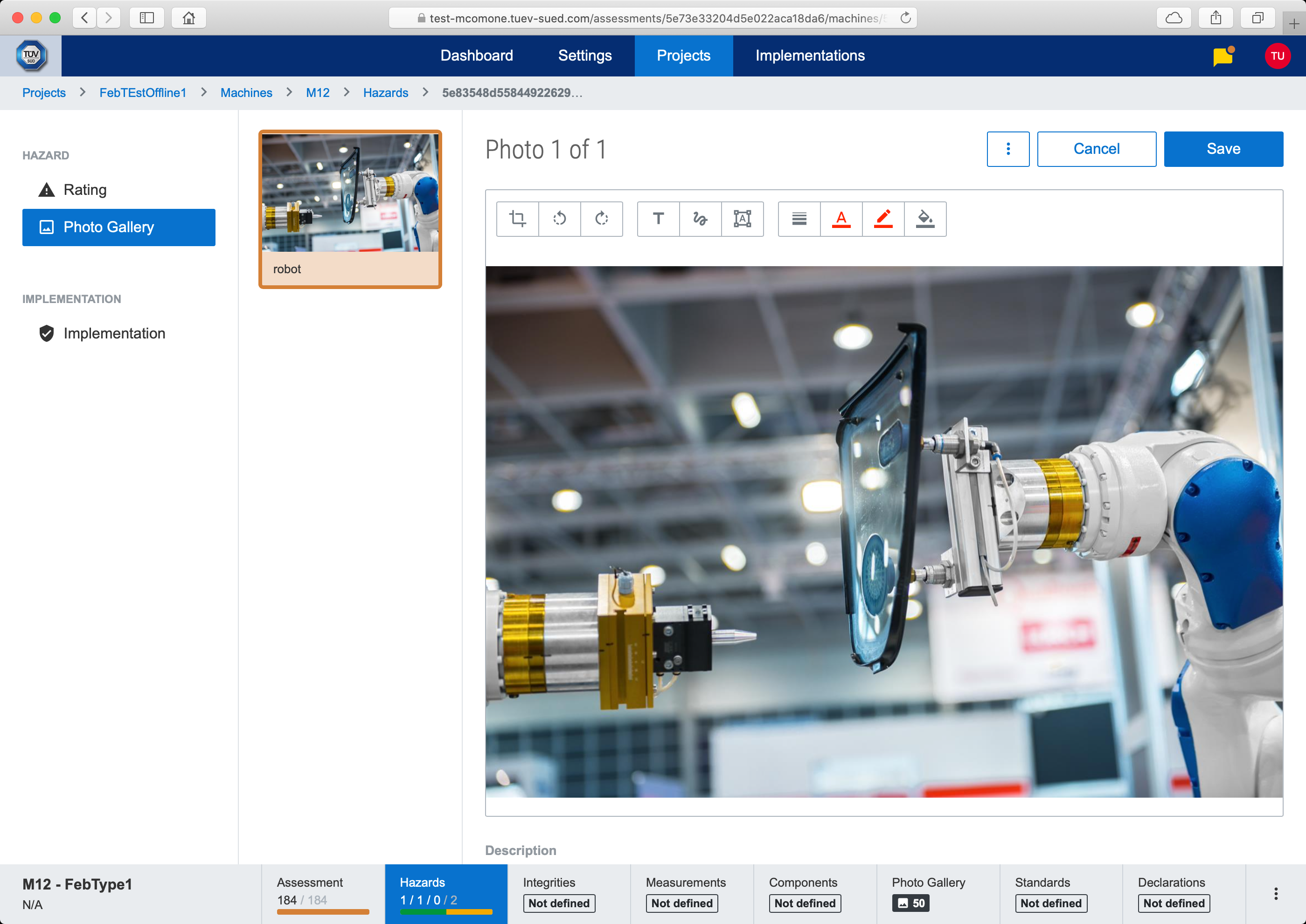
Edit Hazard Photo
Edit Hazard Implementation
This modal screen is used to edit hazard implementation in project machine assessment.
Actions Timeline
This part of screen displays timeline of hazard implementation actions. They are ordered according to created date (i.e. on top is the oldest action, on bottom is the newest action).
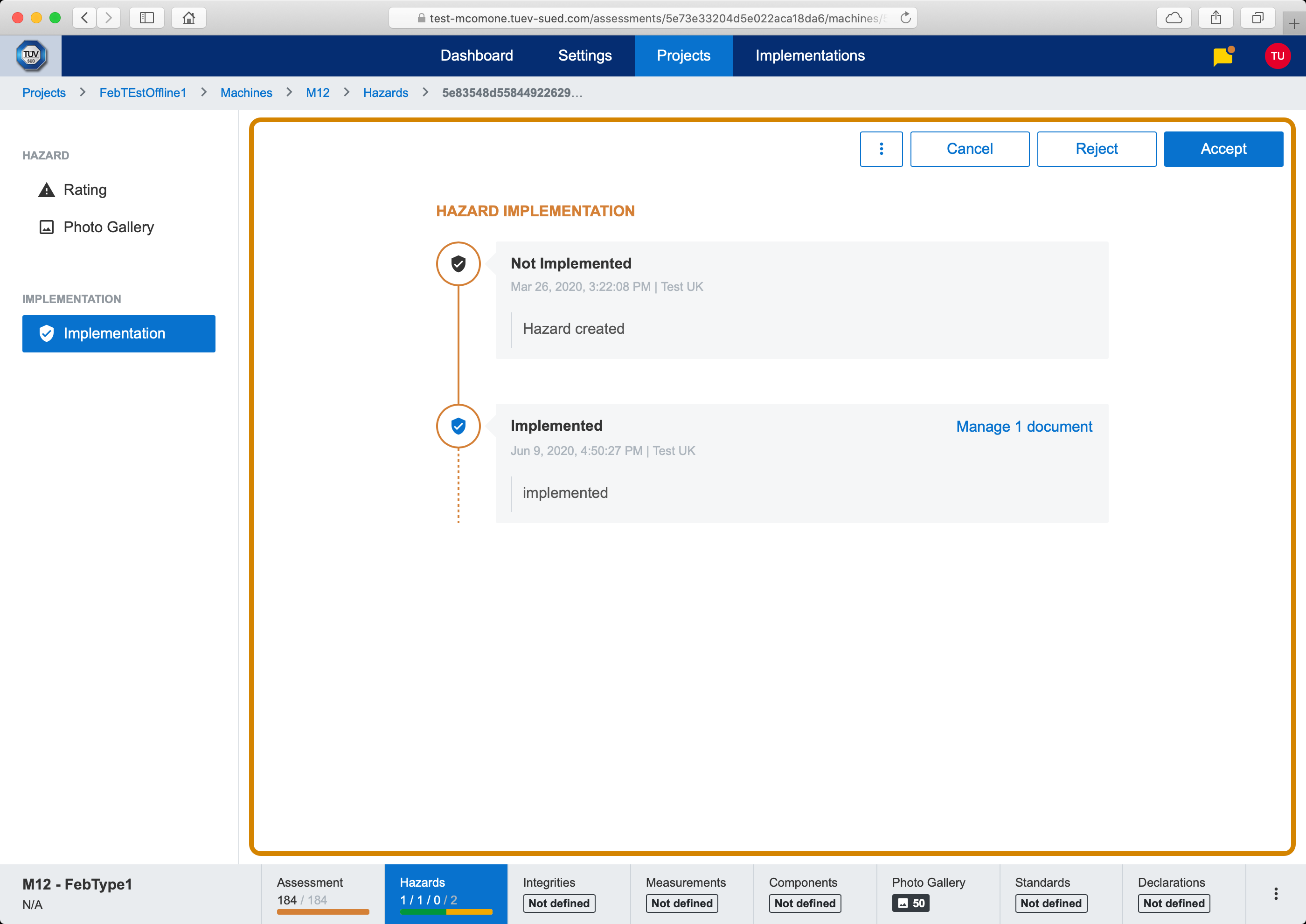
Actions timeline
Each action represents a hazard implementation state change which is documented (who, when, what) and may include additional documents as attachments. Each action has following information:
Hazard implementation state
Date and time when action was created
User that created this action
Notes
Link to manage/view attached documents
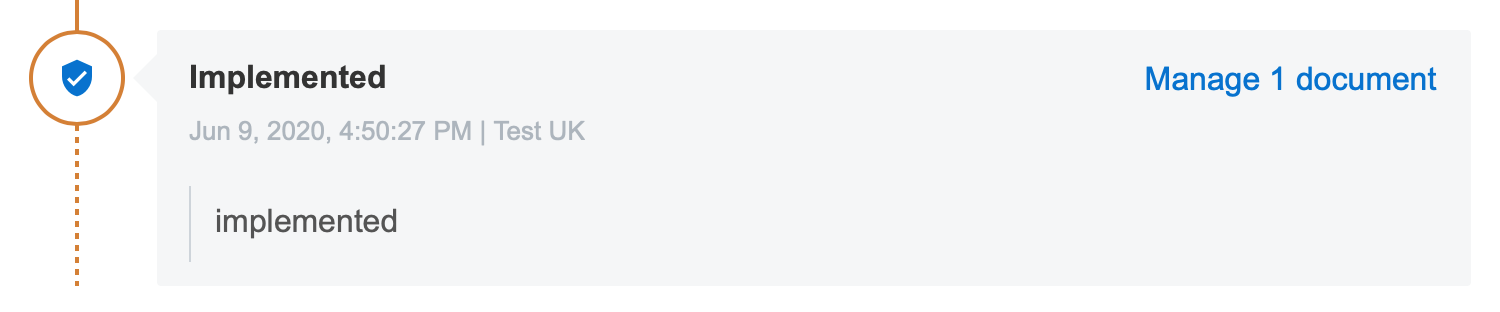
Hazard implementation action
Following diagram describes possible hazard implementation states.
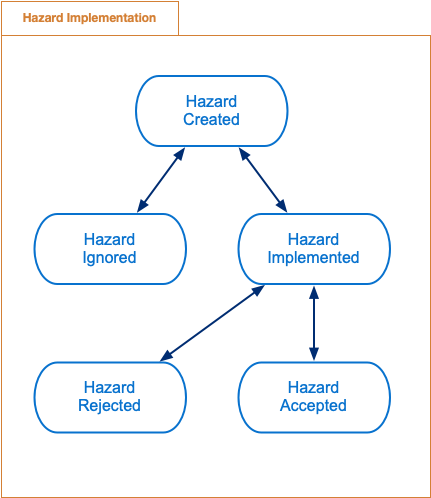
Hazard implementation states
In order to change hazard implementation state, hazard implementation action needs to be created.
Add Action
In top right corner of Actions Timeline are buttons for adding new hazard implementation action. Buttons depends on current hazard implementation state and only relevant actions are available.

Add action
Clicking on action button opens hazard implementation action modal dialog.
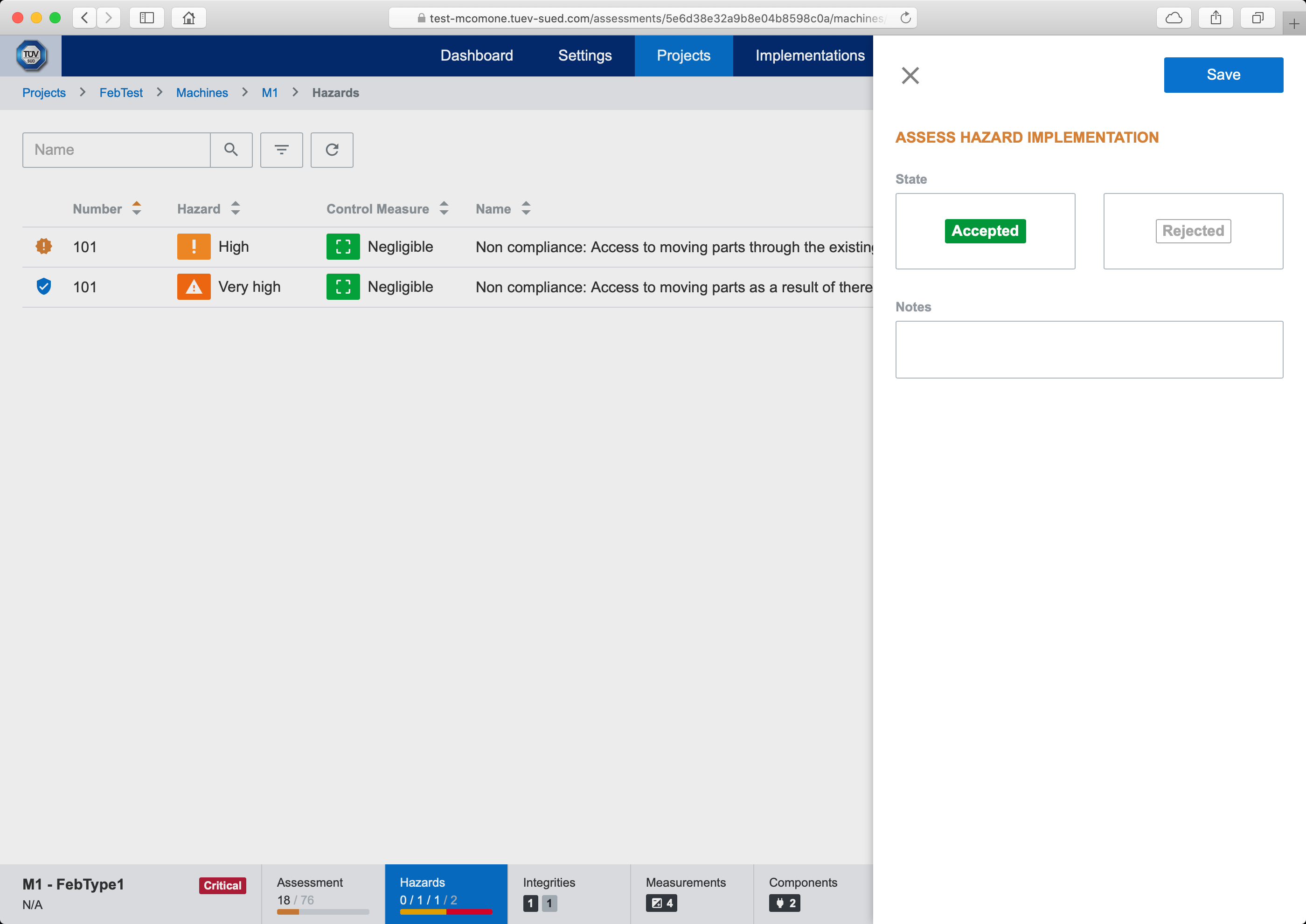
Action dialog
Saving hazard implementation action will create new action in hazard implementation actions timeline and will change hazard implementation to new state.
Note: Hazard implementation action documents (e.g. photos, documentation, etc.) can be added in Manage Action Documents.
Reset Action
Hazard implementation action can be reseted using dropdown menu buttons.

Reset action
Clicking on reset button opens hazard implementation reset modal dialog.
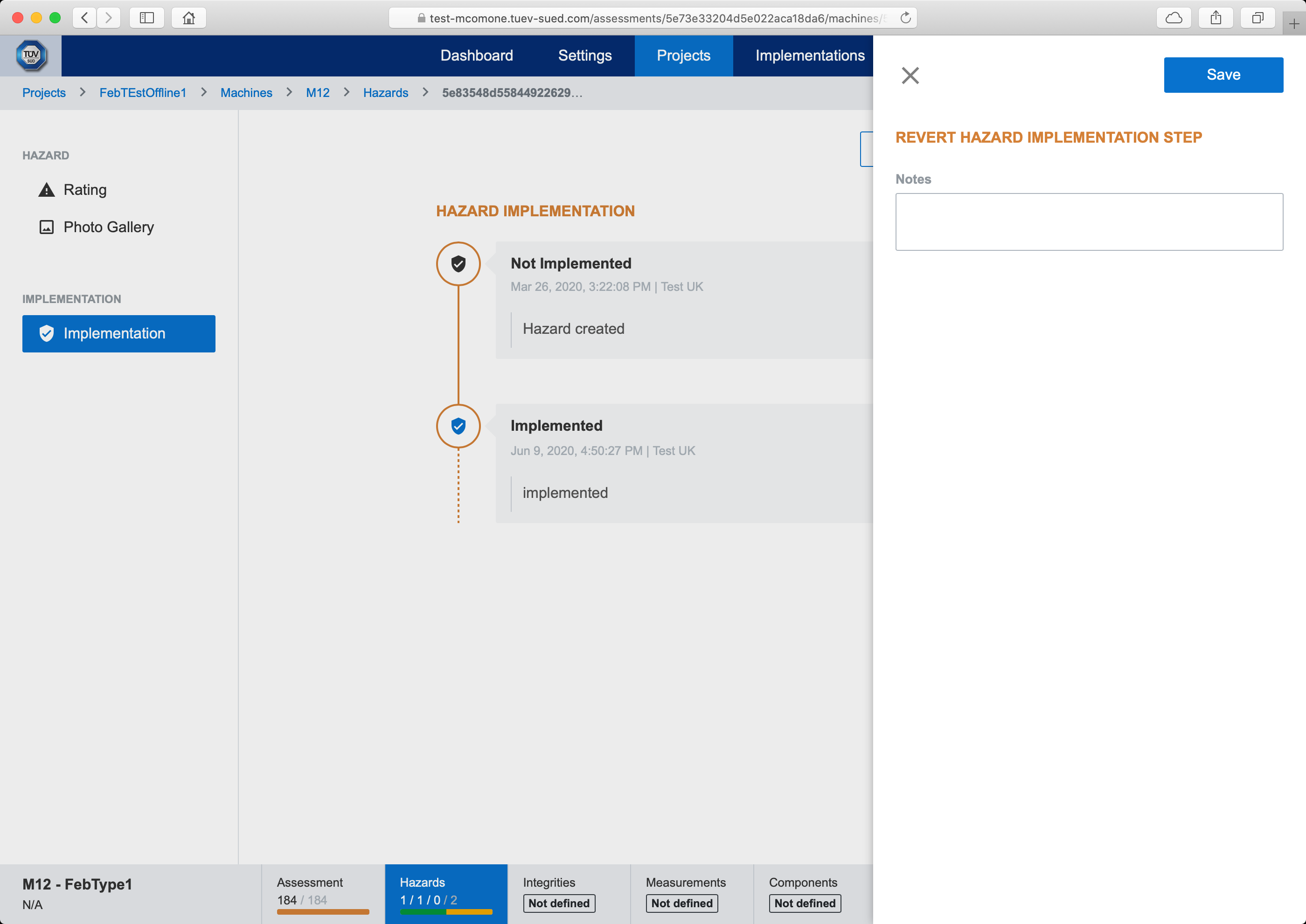
Reset dialog
Saving hazard implementation action will create new action in hazard implementation actions timeline and will change hazard implementation to previous state.
Note: Hazard implementation action documents (e.g. photos, documentation, etc.) can be added in Manage Action Documents.
Manage Action Documents
Each hazard implementation action can have multiple attached documents (i.e. photos, documents, etc.). Documents management is accessible via Manage Documents link from Actions Timeline.

Manage action documents
Note: Link Manage documents is available only for user who has created last hazard implementation action in actions timeline because only this user can add, edit or remove attached documents to this hazard implementation action. In order to ensure data consistency and immutability of attached documents, if hazard implementation state is changed (i.e. new hazard implementation action is created), it is not possible to manage attached documents anymore and documents are available for viewing only (via View documents link).
Clicking on Manage documents or View documents will open action documents list screen.
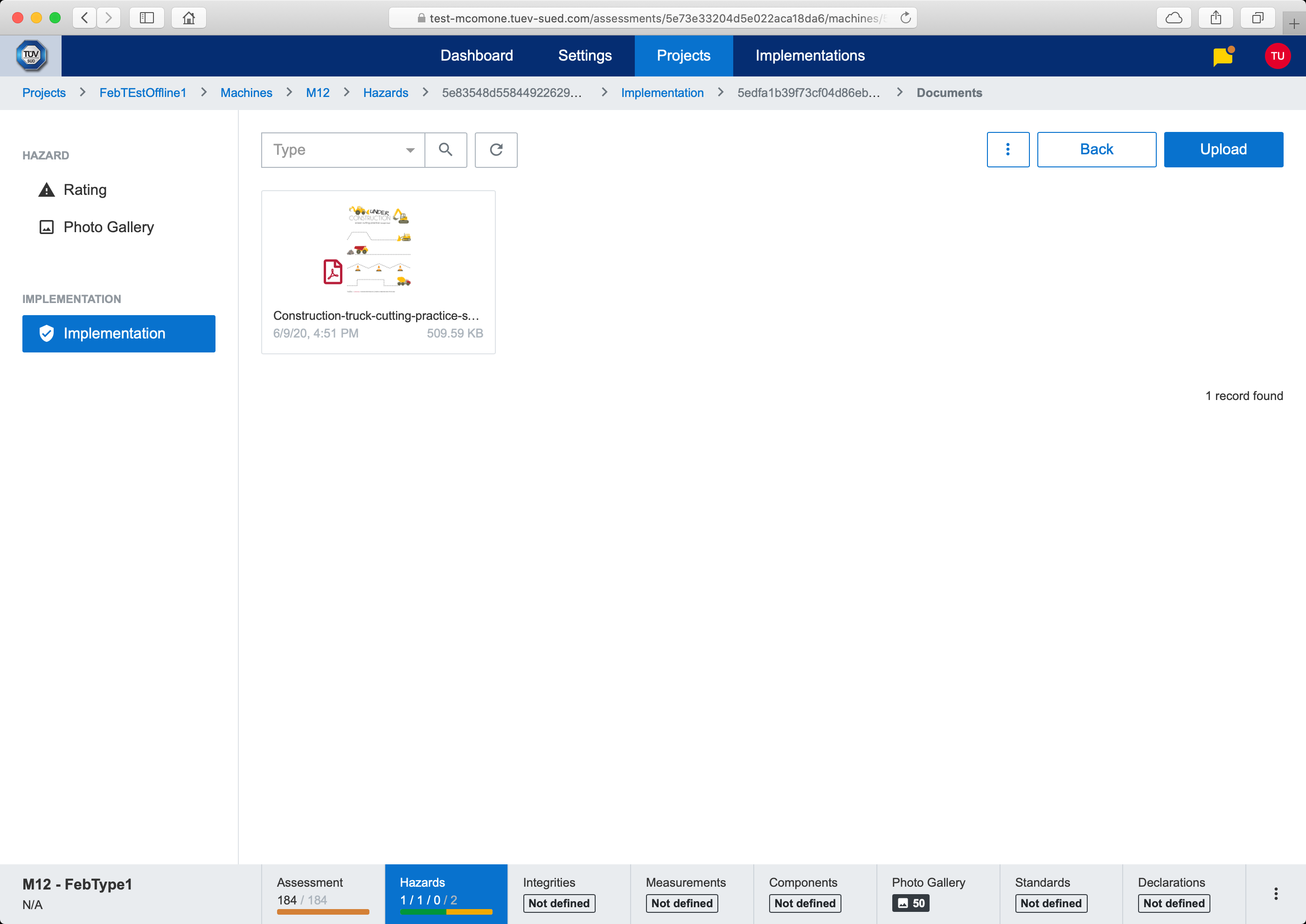
Action documents
In documents list, document can be downloaded or edited. In order to add new document, file needs to be uploaded (either by pressing Upload button or drag & drop). After the document is uploaded, clicking on document will open edit modal dialog.
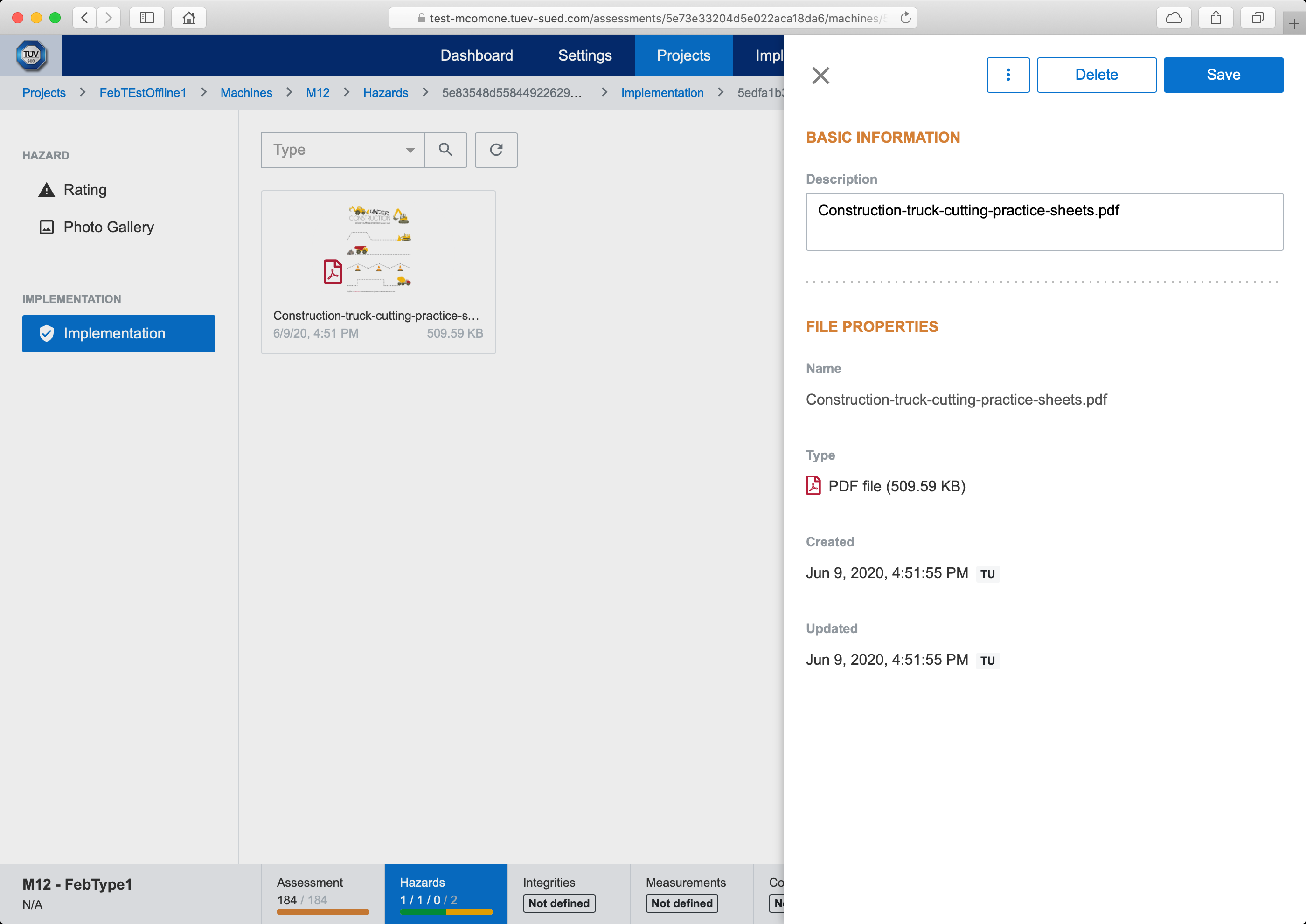
Edit document
Access Rights
Functionality | Provider Engineer | Customer Engineer |
|---|---|---|
Hazards List | x | x |
Hazard Implementation Actions | x | x1 |
Edit Hazard Rating | x | x |
Edit Hazard Photos | x | x |
Edit Hazard Implementation | x | x |
Edit Hazard Implementation - Add Action | x | x2 |
Edit Hazard Implementation - Reset Action | x | x3 |
Edit Hazard Implementation - Manage Action Documents | x4 | x4 |
1 Limited to Accept Risk, Implement Hazard and Reset Implementation actions
2 Limited to Accept Risk and Implement Hazard actions
3 Limited to Reset Implementation
4 Limited to user who created last action, otherwise all documents are read-only